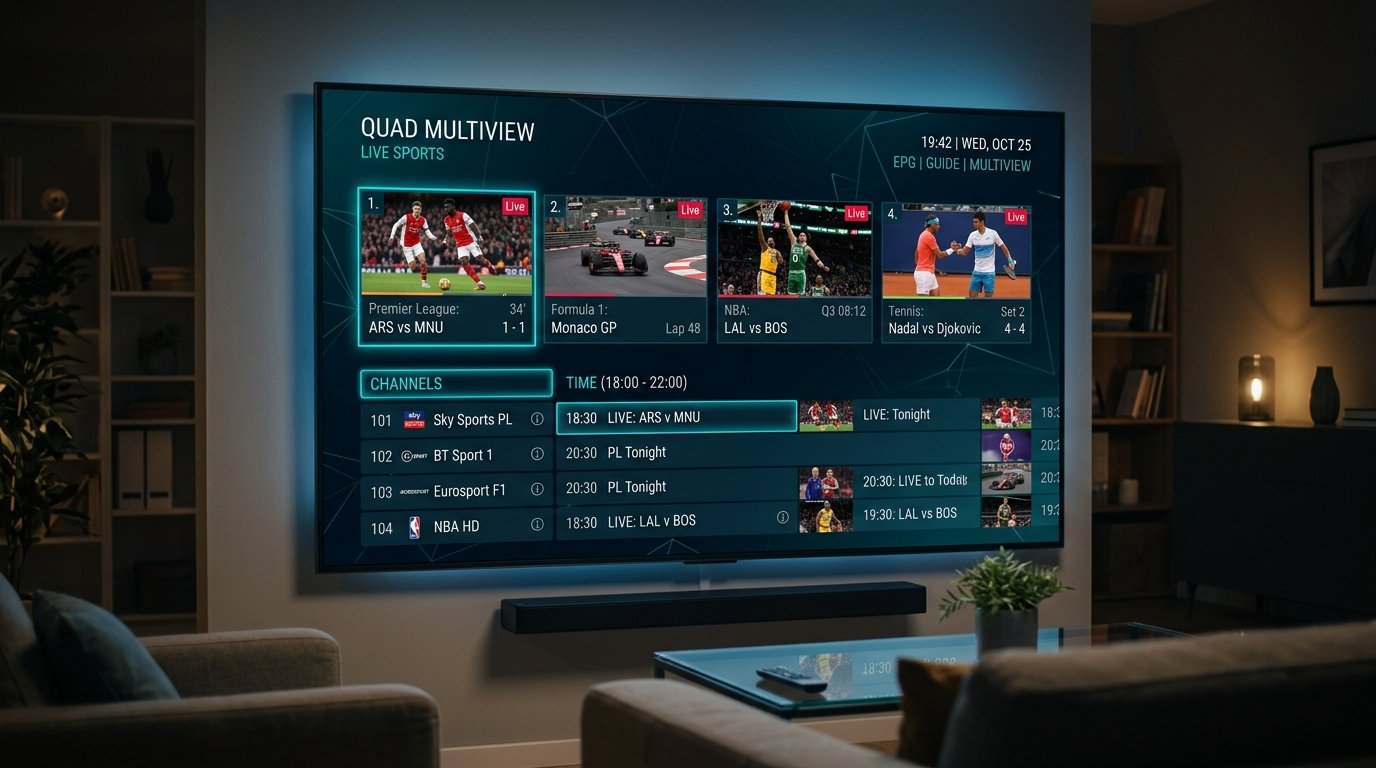
In the world of Android-based IPTV streaming, TiviMate IPTV Player stands in a league of its own. Engineered specifically for television screens and remote controls, TiviMate delivers an authentic, high-end cable and satellite set-top box interface. With sub-second channel zapping, smooth 60fps guide scrolling, and support for up to 9 simultaneous multi-screen channels, pairing TiviMate with an enterprise provider like Eternal iptv creates an unbeatable home entertainment setup.
In this 2026 masterclass, we explain how to configure TiviMate from scratch, unlock TiviMate Premium using the official Companion app, assign custom electronic program guides (EPG), and optimize playback buffers for completely freeze-free sports streaming.
TiviMate Free vs. TiviMate Premium Feature Comparison
| Feature Capability | Free Version | Premium Version ($33.99 Lifetime) |
|---|---|---|
| Multiple Playlists | 1 Playlist Only | Unlimited Playlists |
| Custom Favorites Management | Basic Favorites | Custom Grouping, Reordering & Color Tags |
| Catch-Up & Timeshift TV | Unavailable | Full 7-Day Interactive Catch-up |
| Multi-Screen (Multiview) | Unavailable | Up to 9 Simultaneous Live Screens |
| Scheduled Local Recording | Unavailable | Full USB / NAS / SMB Network Recording |
Step 1: Unlocking TiviMate Premium with TiviMate Companion
Because Amazon Fire TV does not support Google Play in-app billing directly, unlocking Premium requires a simple two-step process:
- On an Android phone, tablet, or PC Android emulator (like BlueStacks), download TiviMate Companion from the Google Play Store.
- Open TiviMate Companion and create a free account with your email and a secure password.
- Select either the 1-Year Subscription ($10.99/yr) or the Lifetime License ($33.99). Both allow activation on up to 5 devices simultaneously.
- Complete payment via Google Play.
- Now, open TiviMate on your Firestick or Android TV → navigate to Settings → Unlock Premium → Login using your TiviMate Companion credentials. Your device will activate immediately!
Step 2: Adding Eternal iptv via Xtream Codes API
- From TiviMate's main screen, click Add Playlist.
- Choose Xtream Codes.
- Enter your server details:
- Server address:
http://line.eternal-iptv.shop:8080 - Username & Password: Your Eternal iptv account credentials
- Server address:
- Check the box for Include TV channels and Include VOD.
- Click Done. TiviMate will parse our 52,500+ channel streams and build your live EPG within 30 to 45 seconds.
Step 3: Mastering Quad Multiview for Live Sports
TiviMate's Multiview feature is the dream of every sports fan. During Champions League, Premier League, or NFL Sunday games:
- Start watching any live sports channel.
- Press the Down button on your remote to bring up the playback overlay menu.
- Select the Multiview icon (the icon showing 4 divided squares).
- Click Add Screen → pick another live game from your sports bouquet.
- You can repeat this to add up to 4 or 9 feeds. Use the remote directional pad to toggle live audio between the active tiles instantly.
Fine-Tuning Buffer Size in TiviMate
If your home Wi-Fi occasionally fluctuates, go to Settings → Playback → Buffer size. Change the default from None to Medium (or Large). This tells TiviMate to cache 3–5 seconds of streaming data in memory, ensuring that brief network micro-drops never cause a buffer freeze.
Ready to Stream 52,500+ Live Channels with Zero Buffering?
Experience Eternal iptv's dedicated NovaCast Ultra™ infrastructure. Get instant access to ultra-HD sports, 4K movies, and 24/7 technical customer support.